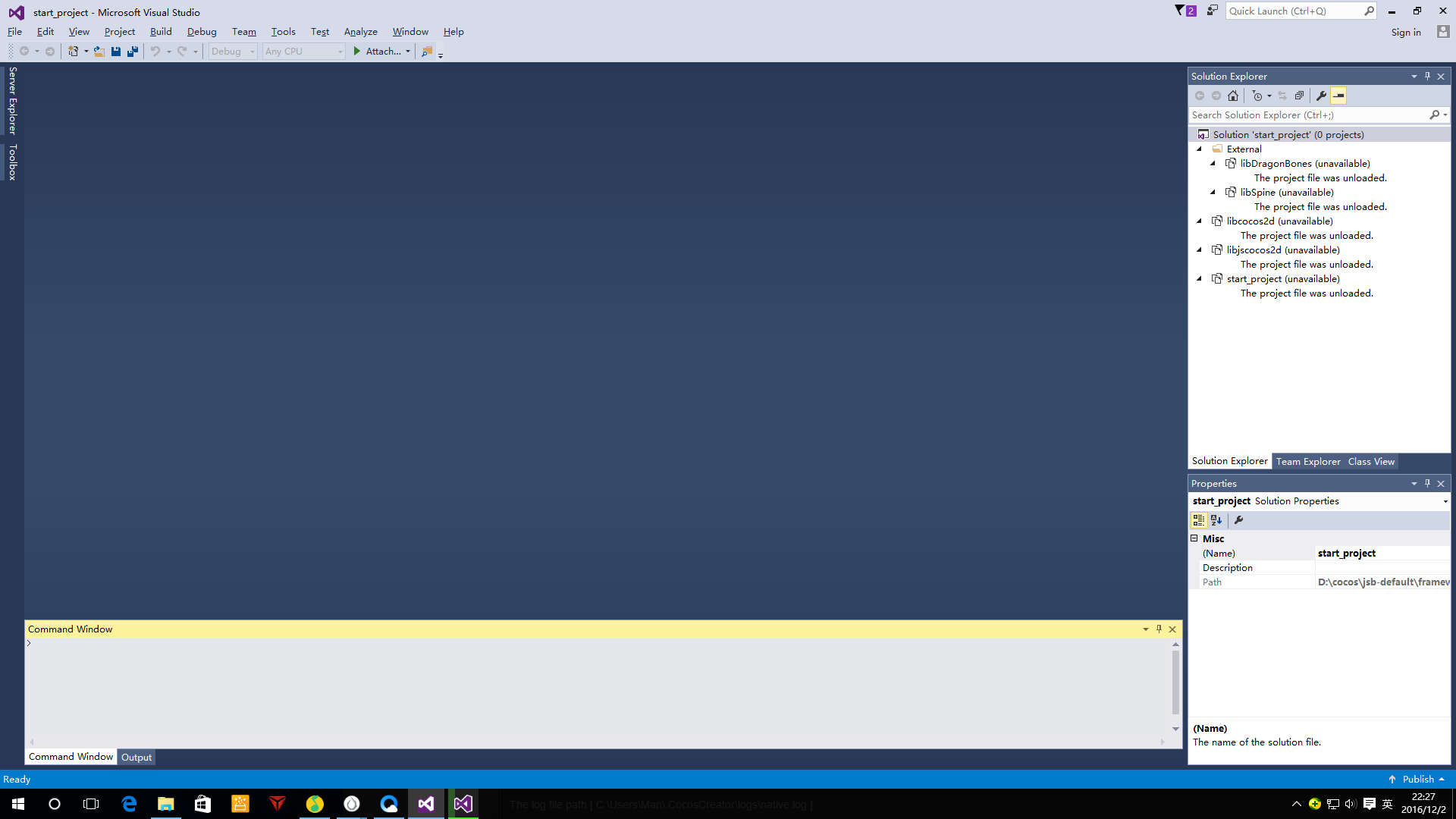
构建发布Windows出错

编译模式:release
正在编译…
要求的 VS 版本:2012
正在执行:’“D:\software\work\VisualStudio\Common7\IDE\devenv.com” “D:\cocos\start_project\start_project\build\jsb-default\frameworks\runtime-src\proj.win32\start_project.sln” /Upgrade’

Microsoft Visual Studio 2015 Version 14.0.25420.1.
Copyright © Microsoft Corp. All rights reserved.

The license for Visual Studio expires in 14 days.

Information:
This project/solution does not require migration. It will open without modification.
正在执行:’“D:\software\work\VisualStudio\Common7\IDE\devenv.com” “D:\cocos\start_project\start_project\build\jsb-default\frameworks\runtime-src\proj.win32\start_project.sln” /Build “Release” /Project “start_project”’

Microsoft Visual Studio 2015 Version 14.0.25420.1.
Copyright © Microsoft Corp. All rights reserved.

The license for Visual Studio expires in 14 days.

The operation could not be completed. 参数错误。

Use:
devenv [solutionfile | projectfile | anyfile.ext] [switches]

The first argument for devenv is usually a solution file or project file.
You can also use any other file as the first argument if you want to have the
file open automatically in an editor. When you enter a project file, the IDE
looks for an .sln file with the same base name as the project file in the
parent directory for the project file. If no such .sln file exists, then the
IDE looks for a single .sln file that references the project. If no such single
.sln file exists, then the IDE creates an unsaved solution with a default .sln
file name that has the same base name as the project file.

Command line builds:
devenv solutionfile.sln /build [ solutionconfig ] [ /project projectnameorfile [ /projectconfig name ] ]
Available command line switches:

/Build Builds the solution or project with the specified solution
configuration. For example “Debug”. If multiple platforms
are possible, the configuration name must be enclosed in quotes
and contain platform name. For example: “Debug|Win32”.
/Clean Deletes build outputs.
/Command Starts the IDE and executes the command.
/Deploy Builds and then deploys the specified build configuration.
/Edit Opens the specified files in a running instance of this
application. If there are no running instances, it will
start a new instance with a simplified window layout.
/LCID Sets the default language in the IDE for the UI.
/Log Logs IDE activity to the specified file for troubleshooting.
/NoVSIP Disables the VSIP developer’s license key for VSIP testing.
/Out Appends the build log to a specified file.
/Project Specifies the project to build, clean, or deploy.
Must be used with /Build, /Rebuild, /Clean, or /Deploy.
/ProjectConfig Overrides the project configuration specified in the solution
configuration. For example “Debug”. If multiple platforms are
possible, the configuration name must be enclosed in quotes
and contain platform name. For example: “Debug|Win32”.
Must be used with /Project.
/Rebuild Cleans and then builds the solution or project with the
specified configuration.
/ResetSettings Restores the IDE’s default settings, optionally resets to
the specified VSSettings file.
/ResetSkipPkgs Clears all SkipLoading tags added to VSPackages.
/Run Compiles and runs the specified solution.
/RunExit Compiles and runs the specified solution then closes the IDE.
/SafeMode Launches the IDE in safe mode loading minimal windows.
/Upgrade Upgrades the project or the solution and all projects in it.
A backup of these files will be created as appropriate. Please
see Help on ‘Visual Studio Conversion Wizard’ for more
information on the backup process.

Product-specific switches:

/componentsDiff Compares two component folders. Requires three arguments:
OptionalTfsServerCollectionUri SourceVersionedServerFolderPath
TargetVersionedServerFolderPath
If OptionalTfsServerCollectionUri is not provided, then an
attempt is made to use the current TFS project collection.

/debugexe Open the specified executable to be debugged. The remainder of
the command line is passed to this executable as its arguments.
/diff Compares two files. Takes four parameters:
SourceFile, TargetFile, SourceDisplayName(optional),
TargetDisplayName(optional)
/openProjects /scc:git Opens committed project from git.
Arguments:
/repositoryUrl (/repo):
/commitId (/id):
/project:
/solution (/sln):
/displayId:
/timestamp:
/comment:
/author:

/openProjects /scc:tfs Opens versioned project from tfs.
Arguments:
/collection (/col):
/version:
/project:
/solution (/sln):
If OptionalTfsServerCollectionUri is not provided, then an
attempt is made to use the current TFS project collection.
/TfsLink 打开团队资源管理器并为提供的项目 URI 启动查看器
(如果注册了项目 URI)。
/useenv Use PATH, INCLUDE, LIBPATH, and LIB environment variables
instead of IDE paths for VC++ builds.

To attach the debugger from the command line, use:
VsJITDebugger.exe -p
执行命令出错,返回值:1。

请问你是用的哪个版本的 Creator 啊?还有就是 native 引擎用的 cocos2d-x 吗?
目前 Creator 的最新版本这个要求的 VS 版本应该是 2013 和 2015。

从报错来看,好像是 Visual Studio 环境问题。

我是装的 Creator, V1.3.2 版本 , VS 版本是安装的时候,我勾选了安装的Visual, 版本应该是2015。
我把Visual, Creato都卸载, 从新安装也是这样的错误。

你之前有安装过 Creator 吗?用的哪个版本呢?是否有指定使用自定义的 native 引擎?

前面有次安装 V1.3.2 前面一个版本的时候,Visual没有安装太慢,我取消了安装Visual, 后来不能构建发布win平台,我就把Creator和Visual都卸载了,然后安装了1.3.2 。 定义的 native 引擎没用过.

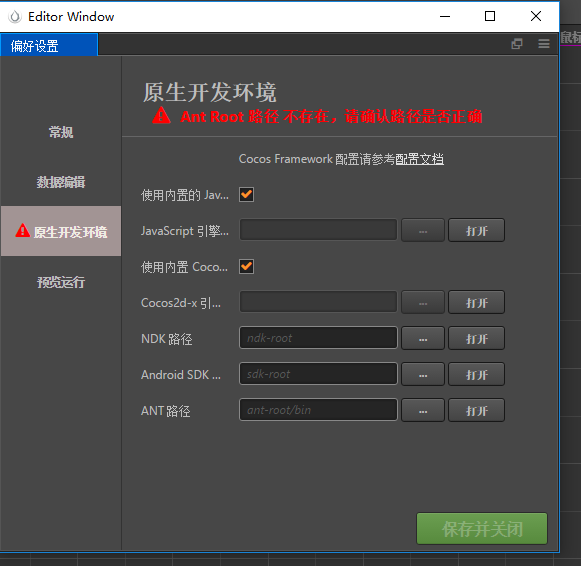
首先,请确认 Creator 的偏好设置中选择了内置的 cocos2d-x 引擎:

然后,构建完 windows 平台之后,打开发布路径:

在文件夹中进入 jsb-default/frameworks/runtime-src/proj.win32 目录,使用安装的 VS 2015 打开目录中的 sln 文件,看看是否可以正常编译运行。


用vs 不能编译~ 用vs创建的项目是可以编译的。

你这个工程有问题啊。是不是构建完之后删除过什么东西啊。所有的 VS project 文件都找不到了。
把 build 文件夹删掉,重新构建一下试试吧。

我新建的工程, 就一个Label, 构建完什么也没动过~~ Web方式没问题

我删掉重新生成了, 还是有错误。

5>------ 已启动生成: 项目: hello_world, 配置: Release Win32 ------
5> main.cpp
5> AppDelegate.cpp
5>D:\software\work\VisualStudio\VC\include\xlocale(341): warning C4530: 使用了 C++ 异常处理程序,但未启用展开语义。请指定 /EHsc (编译源文件 main.cpp)
5>D:\software\work\VisualStudio\VC\include\xlocale(341): warning C4530: 使用了 C++ 异常处理程序,但未启用展开语义。请指定 /EHsc (编译源文件 …\Classes\AppDelegate.cpp)
5>D:\software\work\VisualStudio\VC\include\exception(359): warning C4577: 在未指定异常处理模式的情况下使用了 “noexcept”;不一定会在异常时终止。指定 /EHsc (编译源文件 main.cpp)
5>…\Classes\AppDelegate.cpp(71): warning C4305: “参数”: 从“double”到“float”截断
5>D:\software\work\VisualStudio\VC\include\exception(359): warning C4577: 在未指定异常处理模式的情况下使用了 “noexcept”;不一定会在异常时终止。指定 /EHsc (编译源文件 …\Classes\AppDelegate.cpp)
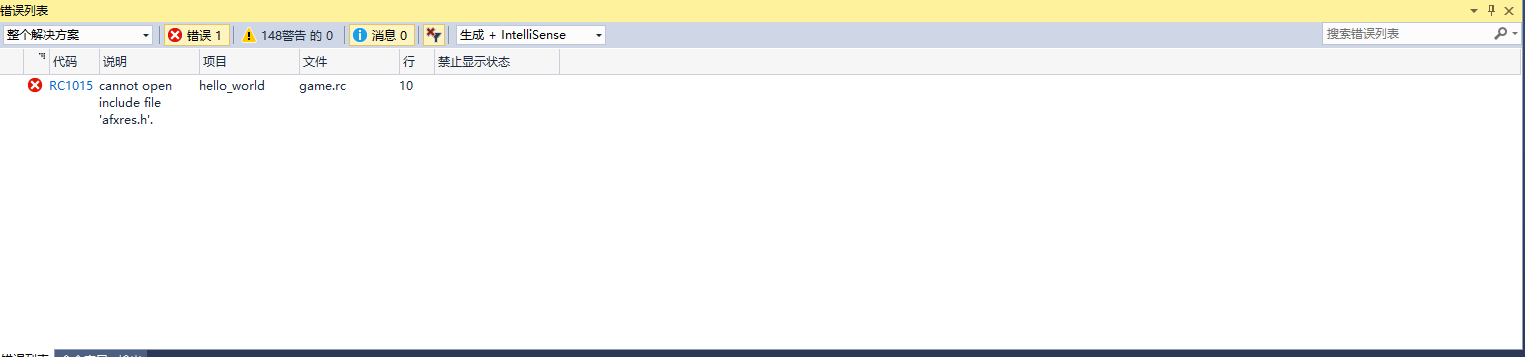
5>game.rc(10): fatal error RC1015: cannot open include file ‘afxres.h’.
5>
========== 生成: 成功 4 个,失败 1 个,最新 0 个,跳过 0 个 ==========
执行命令出错,返回值:1。

我用vs编译下了 提示

cannot open include file afxres.h

这个文件是系统的头文件。应该还是 VS 安装有问题。你在安装 VS 的时候都选择了哪些模块啊?

afxres.zip (7.9 KB)

把这个缺少的文件放在 Microsoft Visual Studio 14.0\VC\include 目录下就行了

1赞

安装Creator的时候勾选的安装Visual ,没有提示让我装模块, 我把缺的模块装好了, 用vs编译是没有问题了, 但是用Creator还是不行, build文件夹删了从新也不行。提示, 未能完成操作。参数错误。

编译模式:release
正在编译…
要求的 VS 版本:2012
正在执行:’“D:\software\work\VisualStudio\Common7\IDE\devenv.com” “D:\cocos\work\NewProject1\build\jsb-default\frameworks\runtime-src\proj.win32\hello_world.sln” /Upgrade’

Microsoft Visual Studio 2015 14.0.25420.1 版。
版权所有 © Microsoft Corp。保留所有权利。

Visual Studio 的许可证 9 天后到期。

已成功完成迁移,但迁移期间检测到一些警告。
有关详细信息,请参阅迁移报告:
D:\cocos\work\NewProject1\build\jsb-default\frameworks\runtime-src\proj.win32\UpgradeLog.htm

信息:
此项目/解决方案不需要迁移。它无需修改即可打开。
正在执行:’“D:\software\work\VisualStudio\Common7\IDE\devenv.com” “D:\cocos\work\NewProject1\build\jsb-default\frameworks\runtime-src\proj.win32\hello_world.sln” /Build “Release” /Project “hello_world”’

Microsoft Visual Studio 2015 14.0.25420.1 版。
版权所有 © Microsoft Corp。保留所有权利。

Visual Studio 的许可证 9 天后到期。

未能完成操作。参数错误。

用法:
devenv [解决方案文件 | 项目文件 | 任意文件.扩展名] [开关]

devenv 的第一个参数通常是一个解决方案文件或项目文件。
如果您希望在编辑器中自动打开文件,
也可以使用任何其他文件作为第一个参数。当您输入项目文件时,IDE
会在项目文件的父目录中查找与该项目文件具有相同
基名称的 .sln 文件。如果不存在这样的 .sln 文件,
IDE 将查找引用该项目的单个 .sln 文件。如果不存在这样的单个
.sln 文件,则 IDE 将创建一个具有默认 .sln 文件名的未保存
的解决方案,其基名称与项目文件的基名称相同。

命令行生成:
devenv 解决方案文件.sln /build [ 解决方案配置 ] [ /project 项目名称或文件 [ /projectconfig 名称 ] ]
可用的命令行开关:

/Build 使用指定的解决方案配置生成解决方案或
项目。例如“Debug”。如果可能存在多个平台,
则配置名称必须用引号括起来
并且包含平台名称。例如“Debug|Win32”。
/Clean 删除生成结果。
/Command 启动 IDE 并执行该命令。
/Deploy 生成并部署指定的生成配置。
/Edit 在此应用程序的运行实例中打开
指定文件。如果没有正在运行的实例,
则启动一个具有简化窗口布局的新实例。
/LCID 设置 IDE 中用于用户界面的默认语言。
/Log 将 IDE 活动记录到指定的文件以用于疑难解答。
/NoVSIP 禁用用于 VSIP 测试的 VSIP 开发人员许可证密钥。
/Out 将生成日志追加到指定的文件中。
/Project 指定生成、清理或部署的项目。
必须和 /Build、/Rebuild、/Clean 或 /Deploy 一起使用。
/ProjectConfig 重写解决方案
配置中指定的项目配置。例如“Debug”。如果可能存在
多个平台,则配置名称必须用引号括起来
并包含平台名称。例如“Debug|Win32”。
必须和 /Project 一起使用。
/Rebuild 先清理,然后使用指定配置生成
解决方案或项目。
/ResetSettings 恢复 IDE 的默认设置,还可以重置为
指定的 VSSettings 文件。
/ResetSkipPkgs 清除所有添加到 VSPackages 的 SkipLoading 标记。
/Run 编译并运行指定的解决方案。
/RunExit 编译并运行指定的解决方案然后关闭 IDE。
/SafeMode 以安全模式启动 IDE,加载最少数量的窗口。
/Upgrade 升级项目或解决方案以及其中的所有项目。
并相应地创建这些文件的备份。 有关备份
过程的详细信息,请参见
“Visual Studio 转换向导”上的帮助。

产品特定的开关:

/componentsDiff 比较两个组件文件夹。需要三个参数:
OptionalTfsServerCollectionUri SourceVersionedServerFolderPath
TargetVersionedServerFolderPath
如果未提供 OptionalTfsServerCollectionUri,则
尝试使用当前的 TFS 项目集合。

/debugexe 打开要调试的指定可执行文件。将
命令行的剩余部分作为参数传递给此可执行文件。
/diff 比较两个文件。 采用四个参数:
SourceFile、TargetFile、SourceDisplayName (可选)、
TargetDisplayName (可选)
/openProjects /scc:git 从 Git 打开提交的项目。
参数:
/repositoryUrl (/repo):
/commitId (/id):
/project:
/solution (/sln):
/displayId:
/timestamp:
/comment:
/author:

/openProjects /scc:tfs 从 tfs 打开版本控制项目。
参数:
/collection (/col):
/version:
/project:
/solution (/sln):
如果未提供 OptionalTfsServerCollectionUri,则
尝试使用当前的 TFS 项目集合。
/sqldbaction 启动 SQL Server Data Tools并执行参数字符串中指定的操作。
/TfsLink 打开团队资源管理器并为提供的项目 URI 启动查看器
(如果注册了项目 URI)。
/useenv 使用 PATH、INCLUDE、LIBPATH 和 LIB 环境变量
而不是使用 VC++ 生成的 IDE 路径。

要从命令行附加调试器,请使用:
VsJITDebugger.exe -p
执行命令出错,返回值:1。
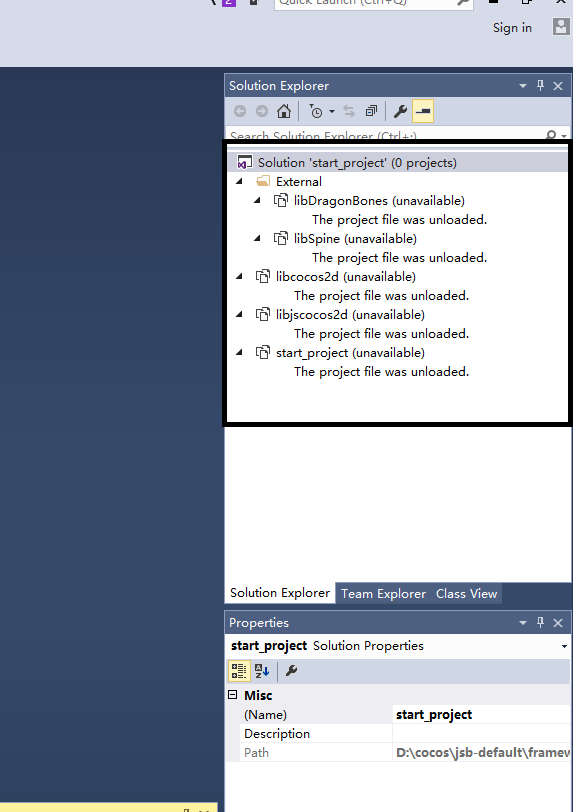
…这是配置的问题吗?

请大神指点下~~~

没有这个目录啊

楼主,这个问题解决了么,怎么弄的?

使用Cocos creator里面带的VS是会有这个问题的,自己搞一个VS安装去