
前言
很多小伙伴发现github的图片加载不出来,参考这个网址修改一下host就能解决了。
用途
用于给开发者使用不规则的按钮,并且可以自定义点击的音效。
效果预览
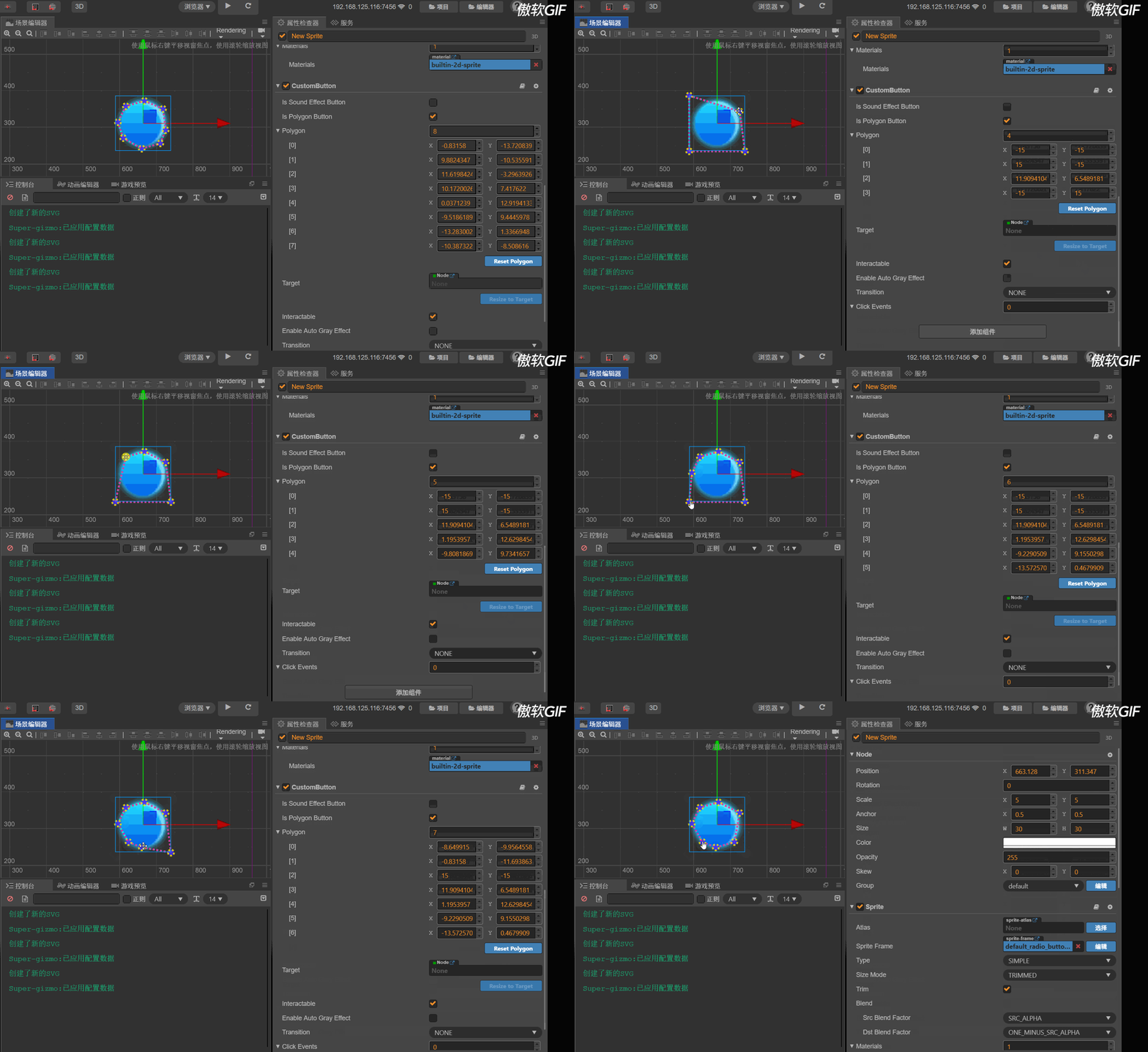
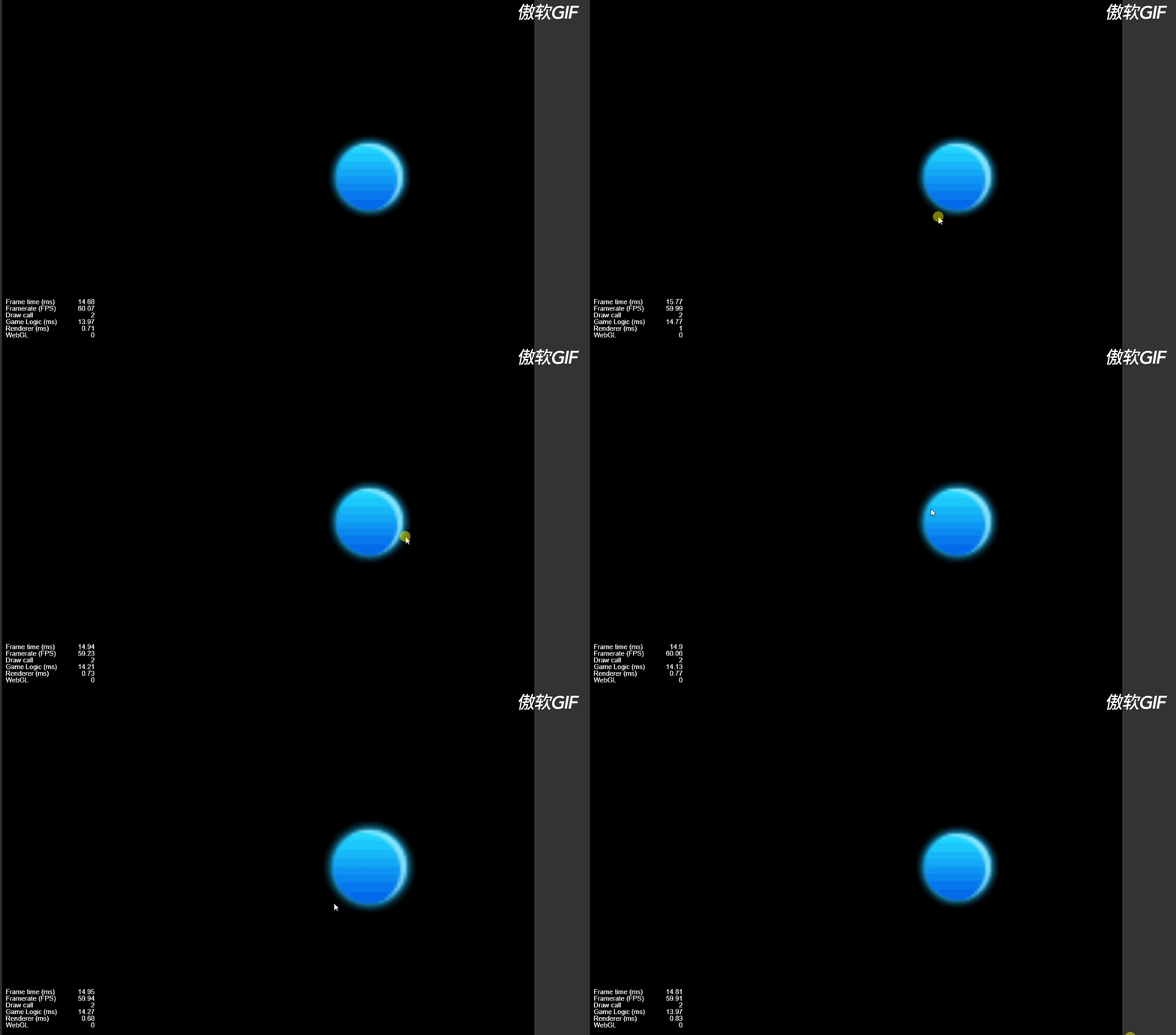
使用方式
- 点击isSoundEffectButton即可开始对音效设置
- 点击isPolygonButton即可开始在视图中编辑多边形区域
- 点击线段可以添加多边形顶点
- 按下ctrl点击顶点即可删除该顶点
- 顶点可拖拽,支持常用的撤回操作。
- 按下resetPolygon可还原多边形区域。
优点
可以使用不规则的按钮,并且开发者还可以在super-gizmo的配置面板自定义gizmo的样式。
原理
-
组件的原理
忽略所有点击区域以外的点击,并且取消点击吞噬。
代码如下:
const {menu,ccclass, property,inspector} = cc._decorator;

@ccclass
@inspector("packages://polygon-button/compiled/inspectors/CustomButtonInspector.js")
@menu('ui-extensions/polygonButton')
export default class CustomButton extends cc.Button {

    @property()
    isSoundEffectButton=false
    @property(cc.AudioClip)
    soundEffect:cc.AudioClip=null;
    @property({slide:true,min:0,max:1,step:0.1})
    soundVolume=1
    @property({animatable:false})

    public get isPolygonButton() : boolean {
        return this._isPolygonButton
    }

    public set isPolygonButton(v : boolean) {
        if(this.polygon.length==0)
        {
            this.resetPolygon()
        }
        this._isPolygonButton = v;
    }
    @property({animatable:false,visible:false})
    protected set _resetPolygon(v)
    {
        if(v)
        {
            this.resetPolygon()
        }
    }
    @property({animatable:false})
    _isPolygonButton=false
    @property([cc.Vec2])
    polygon:cc.Vec2[]=[]
    resetPolygon(){
        const box=this.node.getBoundingBox()
        const xmax=(box.xMax-this.node.x)/this.node.scaleX
        const xmin=(box.xMin-this.node.x)/this.node.scaleX
        const ymax=(box.yMax-this.node.y)/this.node.scaleY
        const ymin=(box.yMin-this.node.y)/this.node.scaleY
        this.polygon=[cc.v2(xmin,ymin),cc.v2(xmax,ymin),cc.v2(xmax,ymax),cc.v2(xmin,ymax)]
    }
    onLoad()
    {
        if(this.isPolygonButton)
        {  //@ts-ignore
            if (this.node._touchListener) {
                  //@ts-ignore
                this.node._touchListener.setSwallowTouches(false);
            }
        }
    }
	/**重写了点击开始的方法**/
    _onTouchBegan(event:cc.Event.EventTouch)
    {
        let isValid=true
        if(this.isPolygonButton&&this.polygon.length>=3)
        {
            const location=event.getLocation()
            const polygon=this.polygon.map(v=>this.node.convertToWorldSpaceAR(v))
            isValid=cc.Intersection.pointInPolygon(location,polygon)
        }
        if(isValid)
        {
            if(this.isSoundEffectButton&&this.soundEffect)
            {
                cc.audioEngine.play(this.soundEffect, false, this.soundVolume)
            }
            //@ts-ignore
            super._onTouchBegan(event)
        }
    }
}
-
gizmo的原理
我继承了自研的super-gizmo父类来快速编写插件的gizmo。
gizmo代码的github链接
代码如下:
"use strict";
const SuperGizmo = Editor.require('packages://super-gizmo/compiled/gizmos/super-gizmo.js');
class CustomButtonGizmo extends SuperGizmo {
    draw() {
        /**拿到组件的多边形的所有点**/
        const polygon = this.target.polygon;
        if (this.target.isPolygonButton && polygon.length > 0) {
            /**获取适配Svg的所有点**/
			const fittedPoints = this.getFittedPositionArray(...polygon);
			/**获取一个渲染用的SVG路径**/
            this.getPath()
				/**绘制闭合的路径**/
                .plot(this.getClosePathData(...fittedPoints));
            /**绘制所有的直线和点**/
            fittedPoints.forEach((point, drawIndex, arr) => {
				if (drawIndex != arr.length - 1) {
                    this.getLine(drawIndex)
                        .plot([point, arr[drawIndex + 1]]);
                    this.getTouchLine(drawIndex)
                        .plot([point, arr[drawIndex + 1]]);
                }
                else {
                    this.getLine(drawIndex)
                        .plot([point, arr[0]]);
                    this.getTouchLine(drawIndex)
                        .plot([point, arr[0]]);
                }
                this.getCircle(drawIndex)
                    .center(point[0], point[1]);
                this.getTouchCircle(drawIndex)
                    .center(point[0], point[1]);
            });
        }
    }
	/**处理圆形被按下**/
    onCircleTouchBegan(point, event, drawIndex, groupIndex, circle) {
        const polygon = this.target.polygon;
        if (event.ctrlKey) {
            if (polygon.length > 2) {
                polygon.splice(drawIndex, 1);
            }
            else {
                Editor.log(Editor.T('ui-extensions.dont-delete'));
            }
        }
    }
    /**处理圆形被拖拽**/
    onCircleTouchMoved(selectedPoint, dx, dy, event, drawIndex, groupIndex, circle) {
        const polygon = this.target.polygon;
        if (selectedPoint && polygon[drawIndex]) {
            polygon[drawIndex].x = selectedPoint.x + dx;
            polygon[drawIndex].y = selectedPoint.y + dy;
        }
    }
    onCircleTouchEnd(event, drawIndex, groupIndex, circle) {
    }
	/**处理线段被点击**/
    onLineTouchBegan(point, event, drawIndex, groupIndex, line) {
        const polygon = this.target.polygon;
        polygon.splice(drawIndex + 1, 0, point);
    }

}
module.exports = CustomButtonGizmo;
希望我开发的插件能够帮到大家,个人开发不易,如果可以的话希望大家来商店支持一下我的插件,遇到任何问题欢迎在商店评论,我会第一时间答复。

 ,这个帮不上你不好意思,也许百度搜索一下“macos 显示不了github 图片”能帮上你